Epson Smart Panel
- 4.5
- Rating
- 10.00M
- Installs
- Free
- Price
 Analysis by App-foxy
I tend to notice printer apps only when I urgently need a document, a scan, or a clean way to send a photo to paper. That is where Epson Smart Panel makes sense: it turns an Android or iOS phone into a practical control point for a compatible Epson printer or scanner. I reviewed it as a tools app rather than as a flashy extra, and my overall impression is that it is most useful when you want fewer trips between your phone, computer, and printer.
The important question is not simply whether the app is free. It is whether your Epson hardware is compatible, whether your everyday documents already live on your phone, and whether you prefer a guided mobile workflow over traditional computer software. For the right household, student, home office, or small work setup, this can remove a surprising amount of friction. For someone using another printer brand, a shared office machine, or a printer that is already easy to manage from a computer, it may add little.
What I looked for before recommending it
My first decision criterion was control. A printer companion app should make basic tasks easier, not merely duplicate buttons that are already available on the device. Epson Smart Panel is designed around controlling a printer or scanner from a smartphone, so its value depends heavily on whether your preferred tasks begin on the phone. Printing a document stored in cloud storage or a photo in the camera roll is a more natural fit than managing a large archive on a desktop.
You May Also Like

 Blood Strike: 2.5 Anniversary
Blood Strike’s Loadouts Turn Every Drop Into a Tactical Gamble
A close look at Blood Strike’s custom loadouts: how fast access to signature weapons reshapes its battle royale rhythm, rewards preparation, and narrows the gap between fights.

 Pandora - Music & Podcasts
Pandora’s Music Is Easy to Start, but Harder to Recover
Pandora’s strength is its low-effort path from a seed to a station. Its weak spot is how much confidence it asks you to place in connection, setup, and quiet recovery.

 8 Ball Pool
 Is Built on Rivalries, Rematches, and Routine
A close look at the rivalries, rematches, shared routines, and unanswered safety questions that turn a quick pool match into a persistent mobile community.

 Samsung Music
’s Quiet Strength Is Playing What You Already Own
Its reach comes less from spectacle than from dependable access to a personal library. That simplicity is both the app’s strongest retention engine and its ceiling.

 AccuWeather: Weather Radar
AccuWeather Review: A Quick, Clear Forecast for Everyday Decisions
For everyday plans, the best forecast is the one you can understand quickly. AccuWeather makes rain timing, radar, and local conditions easy to act on, with a few trade-offs.

 Hill Climb Racing
Why Hill Climb Racing Still Turns Crashes Into One More Run
A tiny car, a bumpy hill and one more upgrade: Hill Climb Racing keeps resurfacing because its simple chaos makes every near-miss feel personal.
More From Our News Desk



The second criterion was setup effort. Mobile printer apps can be convenient after installation but frustrating during the first connection. The phone, printer, and wireless network all need to cooperate, and the experience can vary with the specific Epson model. I would therefore treat compatibility as the first check before changing your regular workflow. The app is free, but “free” does not make an incompatible printer useful.
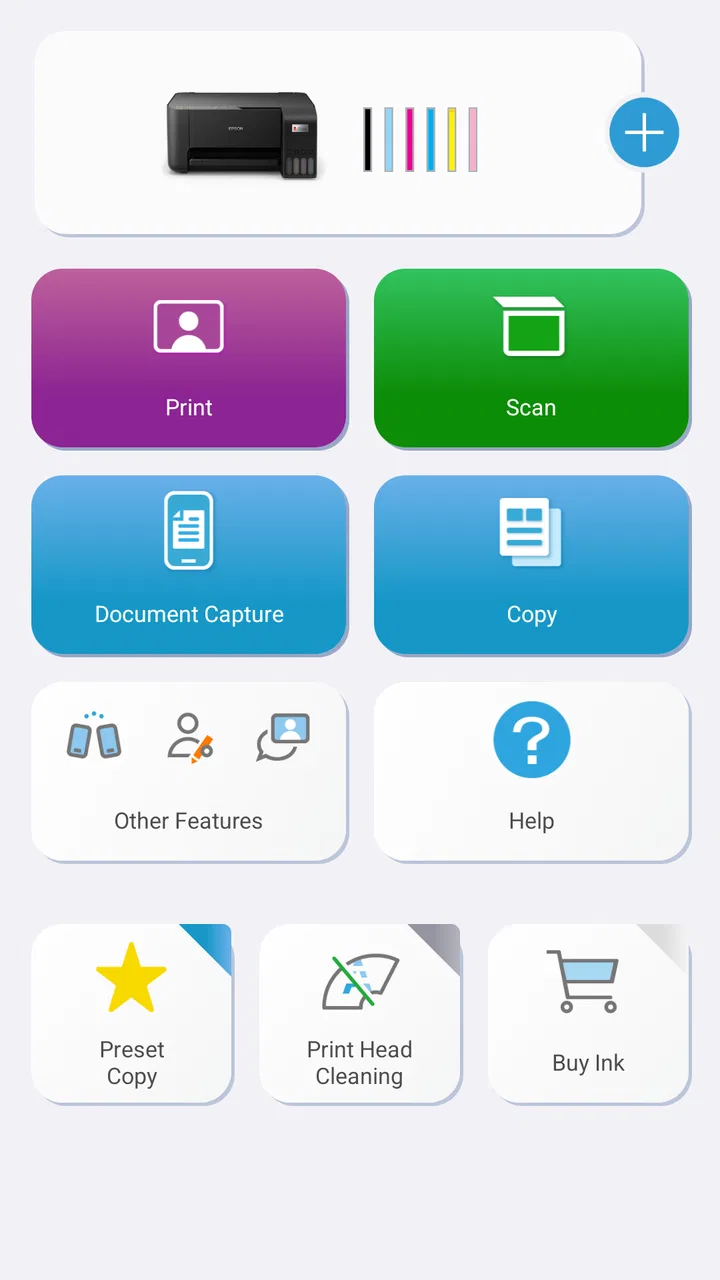
The third criterion was how much guidance you want. Epson Smart Panel belongs to the tools category, but it is not merely a remote button panel. Its appeal is the more approachable path from selecting a source on the phone to sending something to the printer or scanner. That is valuable for people who do not want to remember which computer utility, driver, or system menu handles each job.
It also helps to set expectations about the platform. The app supports Android and iOS use, while the Android listing identifies a minimum operating system of version 9. That makes it accessible to many everyday phones, but I would still check the software requirements on an older device before planning to use it as the only way to manage a printer.
A realistic home workflow
Imagine receiving a form as an email attachment while you are away from your computer. You open it on your phone, send it through the Epson app, and print it without first transferring the file to a laptop. That is the kind of small task where the app earns its place. The same applies to printing a boarding document, a school worksheet, a return label, or a photo someone has just shared with you.
Scanning is another useful scenario. If you need a paper receipt or signed page in digital form, controlling the scanner from the phone can keep the process in one place. Instead of scanning through a desktop program and then searching for the resulting file, you can begin with the mobile device that is already likely to be nearby. I find this especially practical for occasional scanning, where a full computer-based workflow feels excessive.
There is a trade-off, though. A phone screen is convenient for selecting a few files, but it is not the best workspace for reviewing dozens of pages, arranging a long document, or checking every detail before a large print job. For those jobs, a computer remains easier to inspect and organize. The app is strongest for short, immediate tasks rather than replacing every part of a desktop document workflow.
Where Epson Smart Panel wins
The clearest strength is convenience. When a file is already on a smartphone, the app shortens the route to the printer. I do not have to email the file to myself, open a computer, locate a download folder, and then start a separate printer utility. That reduction in steps is not dramatic for one page, but it becomes meaningful when printing happens in small bursts throughout the week.
It also gives a more consistent starting point for Epson owners. Instead of learning a different process for printing a photo, handling a scan, or controlling the device, I can begin with the same mobile companion. That matters for families, where not everyone is equally comfortable with printer menus or computer drivers. A guided phone interface can be less intimidating than a printer display filled with unfamiliar options.
Another advantage is immediacy. The phone is often the device holding the content I want to use. Photos are taken there, documents arrive through messaging apps, and many people now read and store files through mobile services. The app fits that reality better than workflows built around a desktop as the central hub.
The biggest practical win is removing unnecessary file transfers. That is more important than any novelty attached to the app. If your usual problem is “the file is on my phone and the printer is across the room,” this tool addresses the actual inconvenience.
Useful habits that make the app more effective
I would begin by connecting the printer and phone in the same place where you expect to use them, rather than treating setup as something to troubleshoot during an urgent print job. Once the connection is working, test both a simple print and a scan. That gives you confidence that the two workflows you care about are available before you need them.
For photos, I recommend checking the image itself before printing. A phone display can make a picture look more forgiving than paper does, and cropping or orientation choices can affect the result. The app makes it easier to start from the camera roll, but it cannot replace a quick visual check. This is a good example of where convenience should not become automatic trust.
For scans, decide in advance where the resulting file should live. A scan is only useful if you can find it later. I prefer a simple folder or naming habit for receipts, school documents, and household records. The app can make capture easier, but organization still depends on the user.
A less obvious benefit is that the app can serve as a bridge for people who share a printer but use different devices. One person may work primarily from a phone, another from a tablet or computer. A mobile control option reduces the need for everyone to understand the same desktop setup. That is particularly helpful in a home where the printer is not permanently attached to one person’s computer.
Its broad adoption also gives me some confidence that it is not an obscure experiment. The app has an average rating of 4.6 from around 419 thousand ratings, with over 10 million installs. Those figures do not guarantee that it will work perfectly with every Epson model, but they suggest that the basic idea has proved useful to a substantial number of people.
Who benefits most from it
I would recommend it first to Epson owners who print from phones regularly, households that need occasional scanning, students handling documents away from a desk, and small home offices where quick access matters more than advanced document management. It is also a reasonable choice for anyone who finds printer setup intimidating and prefers a single manufacturer-supported starting point.
The age rating is Everyone, which fits the straightforward nature of the tool. There is no need for specialized technical knowledge to understand its purpose. Still, a friendly interface does not remove the need to select the correct printer, use a suitable network, and review documents before sending them. Beginners may find the app approachable, but they should not expect it to solve every connection problem automatically.
Where another option may fit better
The usual alternative is the operating system’s own printing support. If your phone already detects the printer reliably and you only need to send a page occasionally, a built-in print command may be faster than opening a separate app. In that situation, Epson Smart Panel is useful mainly when you also want scanner control or a more guided manufacturer-specific workflow.
A computer-based Epson utility is often the better choice for heavier work. Desktop software generally gives you more room to inspect files, manage multiple pages, and prepare detailed jobs. I would choose the computer route for a long report, a batch of scans, or anything where page order and layout deserve close attention. The phone app is not a poor substitute; it is simply optimized for a different scale of work.
Universal mobile printing tools may be preferable in a mixed-brand environment. If your home or office uses printers from several manufacturers, relying on one brand’s companion app for each device can become inconvenient. A broader system-level approach may provide a more uniform experience, although it may not offer the same manufacturer-focused scanner controls or guidance available through Epson’s own app.
Cloud and document-management services can also be better for teams. If several people need shared folders, approval steps, searchable archives, or repeatable business processes, a printer control app is only one small part of the solution. Epson Smart Panel can help produce or capture a document, but it should not be mistaken for a complete records-management platform.
There is also a clear reason to skip it: if you do not own a compatible Epson printer or scanner, installing it is unlikely to improve your routine. The app’s purpose is tightly connected to Epson hardware. This is not a general printing service that makes any nearby device smarter.
Limitations worth considering
The first limitation is dependence on the hardware and connection around it. A mobile interface feels simple, but printing still involves a physical machine, consumables, paper, and a network path. When something fails, the app may be the visible part of the problem without being the cause. I would not judge it solely by how smooth the screen looks during setup.
The second limitation is the smaller workspace. Phones are excellent for quick selection, but less comfortable for comparing several files or checking a multi-page job. If you often print complex documents, you may find yourself moving back to a computer anyway. That is not a failure of the app; it is a reminder to match the tool to the task.
The third is that convenience can encourage careless printing. A document that takes only a few taps to send still deserves a final check for the right page range, orientation, and content. Mobile workflows are fast, but speed is not the same as accuracy. I especially recommend reviewing sensitive or important documents before confirming the job.
Finally, the current version is 5.2.2, and the app was released on March 24, 2020. Those details place it in an established product line rather than a brand-new experiment, but software changes over time. I would keep the app updated through the normal store process and treat the experience as something that can evolve alongside the printer firmware and phone operating system.
The cost of changing your routine
Because the app itself is free, the main cost of switching is not money. It is time spent checking compatibility, connecting the printer, and learning a new path for familiar tasks. If your current method already works well, that setup effort may not feel worthwhile for occasional printing.
The switch becomes easier when you start with one recurring job rather than trying to replace everything at once. For example, use the app for phone photos first, then try a scan, and only later decide whether it deserves a larger role. This approach makes it obvious whether the mobile workflow saves time in your particular home or office.
I would also keep the existing computer method available during the transition. That gives you a fallback for long documents or connection problems. A good printer app should expand your options, not force you into a single path before you know whether it suits you.
For families, the hidden cost can be teaching several people the same basic process. The benefit is that once they understand the app, they may no longer need to ask which computer is connected or where the printer utility is located. For a single user who already knows the desktop setup, the gain may be smaller.
The app is free, but printing itself is never cost-free in the broader sense because paper and ink remain part of the physical workflow. I would not install it expecting it to reduce those expenses automatically. Its contribution is convenience and access, not a promise that every print job becomes more economical.
My recommendation after using it
I recommend Epson Smart Panel to Epson owners who want to print or scan from a phone without routing every task through a computer. It is especially convincing for short, everyday jobs: a form from an email, a photo from the camera roll, a receipt that needs scanning, or a page someone sends while you are away from your desk.
I would be more cautious if your work involves large batches, demanding layout control, mixed printer brands, or shared document administration. In those cases, a desktop utility, built-in mobile printing, or a broader document workflow may be the better center of your setup. The app can still be useful as a secondary tool, but I would not make it the only answer.
Seiko Epson Corporation has made a focused tool rather than an all-purpose office suite, and that focus is its main advantage. It does not need to replace every printer workflow to be worthwhile. It only needs to make the phone-to-printer gap shorter and the occasional scan less awkward.
My final advice is simple: install it if your Epson device is compatible and your documents commonly start on your phone. Try one print and one scan before committing to a complete change. If those two tasks feel natural, the app will probably become a useful part of your routine. If you mostly work at a computer or use a mixed-brand printer collection, stick with the method that already gives you better control. For the right user, Epson Smart Panel is a practical free tool, not because it adds unnecessary complexity, but because it removes a few everyday steps that are easy to underestimate.
FAQs for Epson Smart Panel
01What is Epson Smart Panel and how does it work?
Epson Smart Panel is a mobile application designed to enhance the functionality of Epson printers and scanners. It allows users to print, scan, and manage documents directly from their smartphones or tablets. By connecting your device to the same Wi-Fi network as your printer, you can easily control various functions, monitor ink levels, and receive notifications about your printer’s status.
02Is Epson Smart Panel compatible with all Epson printers?
While Epson Smart Panel supports a wide range of Epson printers, not all models are compatible. It's essential to check the compatibility list on the Epson website or within the app itself to ensure your printer model is supported. Generally, newer models and those with Wi-Fi connectivity are more likely to be compatible with the app.
03What features does Epson Smart Panel offer?
Epson Smart Panel offers a variety of features to streamline your printing and scanning processes. Key features include mobile printing, scanning to cloud services, copying, and printer maintenance tasks such as checking ink levels and ordering supplies. It also provides easy navigation and user-friendly interfaces to enhance your overall experience.
04How secure is the Epson Smart Panel app?
Epson Smart Panel prioritizes user security by implementing secure connections between your device and printer. The app uses encrypted data transmission to protect your information. However, it's crucial to ensure that your Wi-Fi network is secure and your app is regularly updated to the latest version to maintain optimal security.
05Are there any costs associated with using Epson Smart Panel?
Epson Smart Panel is a free app available for download on both Android and iOS platforms. However, while the app itself does not require payment, keep in mind that printing and scanning may incur costs related to ink, paper, and other supplies. Additionally, some advanced features may require an Epson account.
Pros
- User-friendly interface for easy navigation.
- Seamless integration with Epson printers.
- Quick setup process with step-by-step guidance.
- Remote printing and scanning capabilities.
- Regular updates enhance app performance.
Cons
- Limited functionality with older printer models.
- Requires stable internet for all features.
- Occasional connectivity drop with some devices.
- App size can be large for limited storage.
- Features may vary between Android and iOS.

Epson Smart Panel
Gallery